- Ben Haresign
- 27 May, 2026
- Digital Tools
- 12 min read
Your Inbox Is Not a To-Do List
Your Inbox Is Not a To-Do List
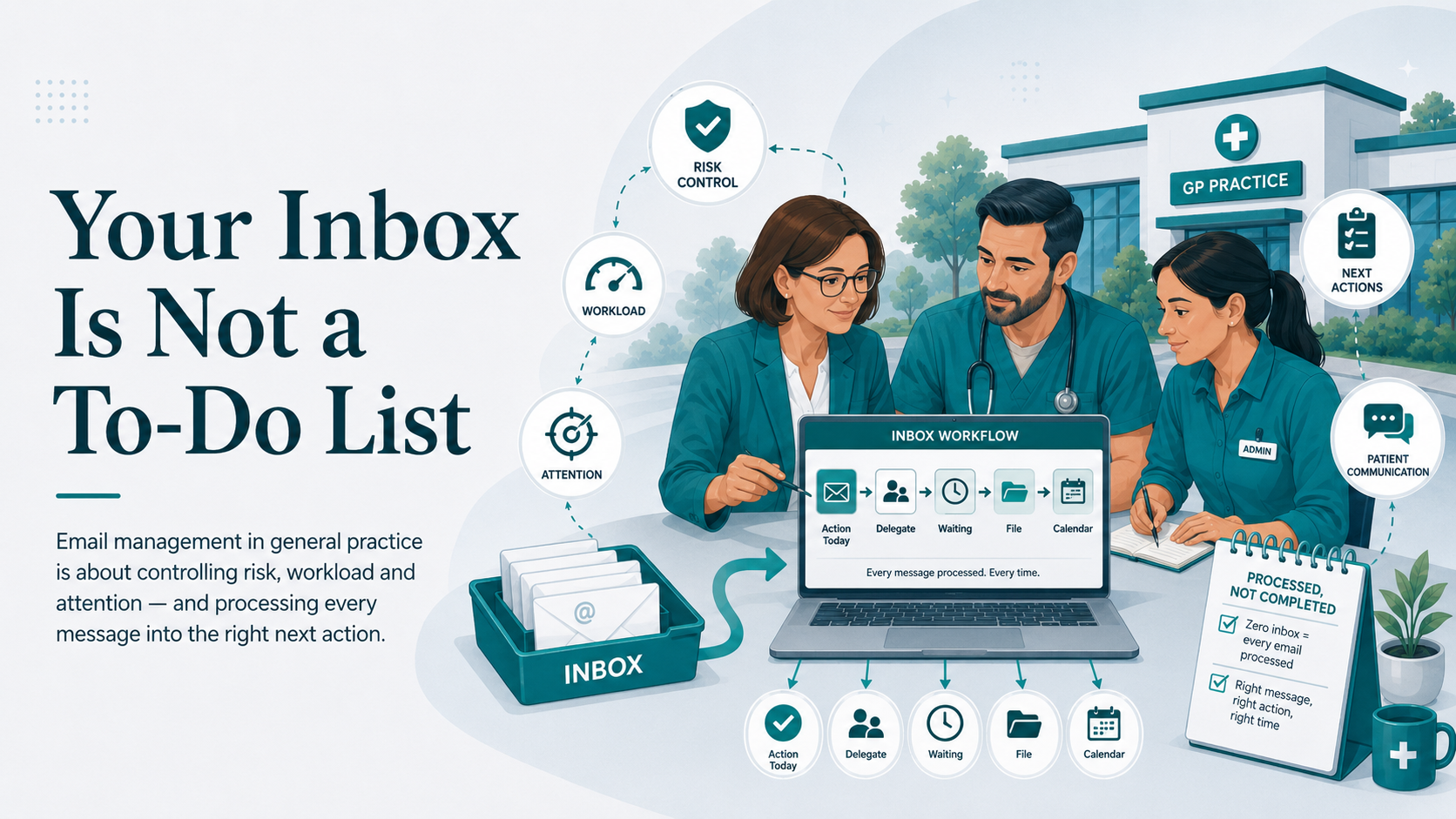
Email management in general practice is not about having a tidy inbox for the sake of it. It is about controlling risk, workload and attention. A zero inbox does not mean every email has been completed; it means every email has been processed into the right next action.
With Outlook Quick Steps, rules, structured folders, delayed send and protected time at the end of the day, the inbox can become a management system instead of a daily source of noise.
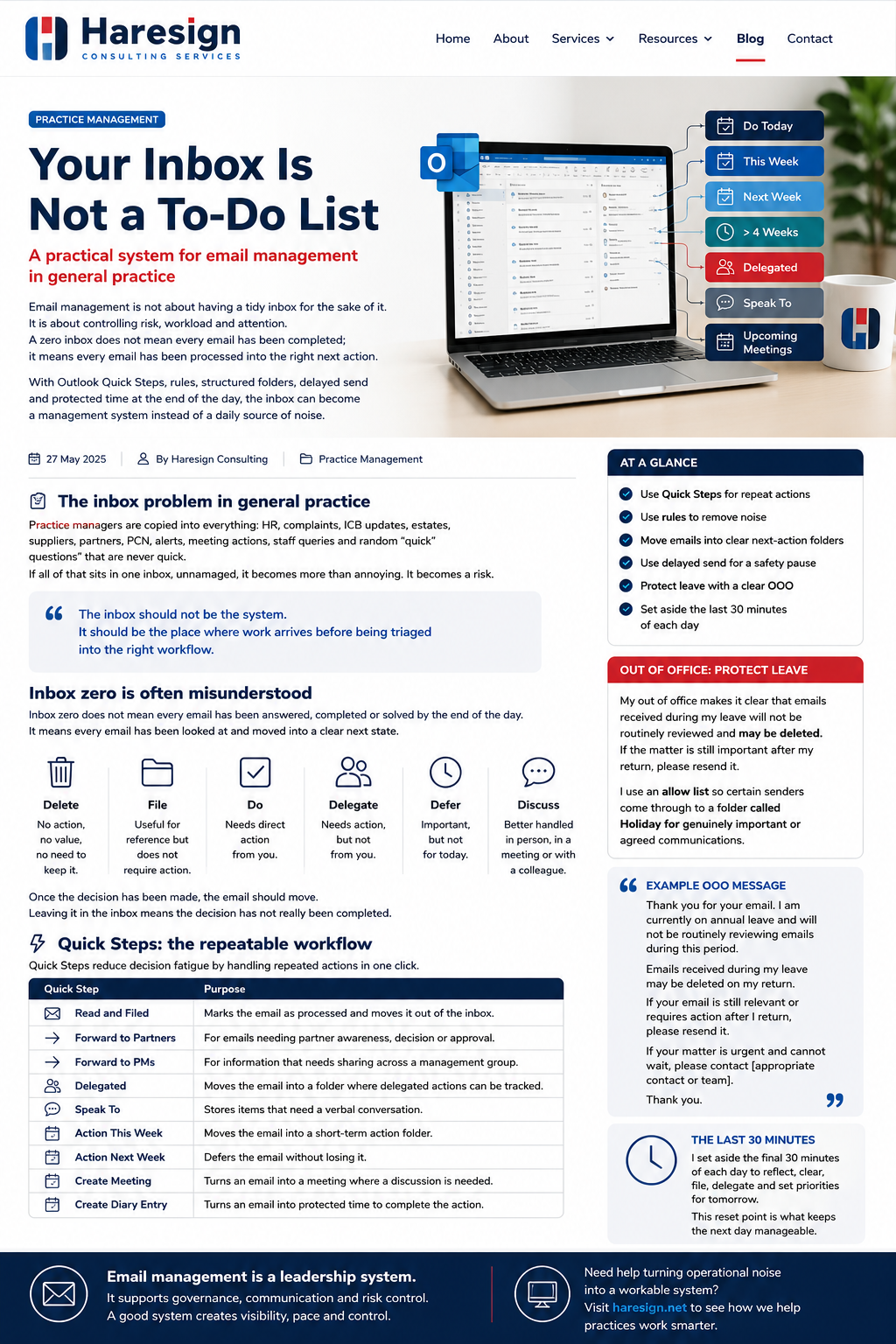
General practice inboxes are not normal inboxes.
They are part complaints desk, part HR system, part governance record, part contract update feed, part supplier portal, part urgent escalation route and part dumping ground for anything nobody is quite sure what to do with.
A practice manager can be copied into emails about staff absence, rota changes, ICB updates, complaints, safeguarding, estates, payroll, claims, QOF, alerts, meeting papers, system issues, patient experience, finance and the occasional email that simply says “Can I just ask a quick question?” which, as we all know, is almost never quick.
If all of that sits in one inbox, unmanaged, it becomes more than annoying. It becomes a risk.
Inbox Zero Is Often Misunderstood
Inbox zero does not mean every email has been answered, completed or solved by the end of the day.
That would be unrealistic in general practice, unless someone has discovered a secret eighth day of the week and is refusing to share it.
Inbox zero means that every email has been looked at and moved into a clear next state. It has either been deleted, filed, delegated, deferred, replied to, turned into a diary action, escalated, or saved for a future meeting or discussion.
The aim is not an empty inbox.
The aim is a controlled inbox. Every email should have a home, a purpose, and a next action.
The danger comes when the inbox becomes the to-do list. Emails remain unread, half-read, flagged, re-flagged, mentally noted, forgotten, searched for again, and then rediscovered three weeks later with a small sense of personal doom.
That is not a workload system. That is archaeology.
The Basic Principle: Every Email Needs a State
A useful email system is built around one simple question:
What is the next action for this email?
Not every email needs a reply. Not every email needs to stay visible. Not every email needs to be read in detail immediately. But every email does need a decision.
Delete
No action, no value, no need to keep it.
File
Useful for reference but does not require action.
Do
Needs direct action from you.
Delegate
Needs action, but not from you.
Defer
Important, but not for today.
Discuss
Better handled in person, in a meeting or with a specific colleague.
Once the decision has been made, the email should move. Leaving it in the inbox means the decision has not really been completed.
Using Quick Steps to Reduce Repeated Work
Outlook Quick Steps are one of the most useful but underused tools for email management.
The reason they work is simple: they reduce repeated manual actions. Instead of forwarding the same type of email, typing the same introductory wording, moving it to the same folder, and trying to remember what you did with it, a Quick Step can do several actions in one click.
For a practice manager, useful Quick Steps might include:
| Quick Step | Purpose |
|---|---|
| Read and Filed | Marks the email as processed and moves it out of the inbox. |
| Forward to Partners | For emails needing partner awareness, decision or approval. |
| Forward to Practice Managers | For information that needs sharing across a management group. |
| Delegated | Moves the email into a folder where delegated actions can be tracked. |
| Speak To | Stores items that need a verbal conversation rather than another email chain. |
| Action This Week | Moves the email into a short-term action folder. |
| Action Next Week | Defers the email without losing it. |
| Create Meeting | Turns an email into a meeting where a discussion is needed. |
| Create Diary Entry | Turns an email into protected time to complete the action. |
This is especially useful where emails are part of a governance trail. If something needs partner sign-off, management discussion, follow-up or diary action, the workflow should be repeatable.
Rules: Remove Noise Before It Reaches Your Attention
Rules are another key part of keeping email manageable. They are useful for separating emails that need active management from emails that are mainly for awareness or reference.
For example, rules can automatically move specific types of email into dedicated folders:
- system alerts
- ICB updates
- NHS England communications
- supplier emails
- emails where you are copied in but not the main recipient
- recurring reports
- holiday cover emails
- known low-value or spam-style messages
The point is not to hide important information. The point is to prevent every email from demanding the same level of attention.
Reference emails and decision emails should not live in the same place.
If every email lands in the same inbox, your brain has to triage the same categories repeatedly throughout the day. Rules do some of that separation before the email reaches you.
This can be particularly helpful for high-volume roles where managers are copied into a lot of communications for awareness, but only a smaller proportion require direct action.
Processed Folders: The Inbox Should Not Hold the Work
Once an email has been reviewed, it should move into a folder that reflects its next action.
A practical folder structure might include:
| Folder | Purpose |
|---|---|
| To do - Today | Items that must be actioned today. |
| To do - This Week | Important actions that need completing during the current week. |
| To do - Next Week | Work that is not immediate but should not be forgotten. |
| To do - >4 Week | Longer-term follow-up items. |
| To do - No Timeline | Useful actions or ideas that do not yet have a fixed deadline. |
| Delegated | Items passed to someone else but still needing oversight. |
| Speak to | Items that need a conversation rather than another email. |
| Upcoming Planned Meeting | Emails to bring into a future meeting or agenda discussion. |
This approach changes the inbox from a storage area into an entry point. The inbox is where work arrives. The folders are where work is managed.
Delayed Send: A Small Pause That Prevents a Lot of Problems
One of the most underrated email management tools is delayed send.
A five-minute delay on sent emails creates a short safety buffer. It gives you time to catch the missing attachment, fix the typo, soften the wording, add the forgotten recipient, remove the accidental recipient, or decide that the email does not need to be sent at all.
In busy management roles, it is easy to fire off quick replies between meetings, during interruptions or while dealing with several things at once. The problem is that email is permanent, searchable and easily forwarded. A message sent in haste can create more work than it solves.
Delayed send is not about slowing down communication.
It is about building in a small moment of control before a message leaves your outbox.
This is particularly useful when dealing with sensitive issues, HR queries, complaints, finance, performance concerns or anything involving tone.
A short delay gives you the closest thing Outlook has to an undo button. It is not glamorous, but neither is explaining why you replied-all to the wrong group at 4:58pm.
What This Looks Like in Outlook
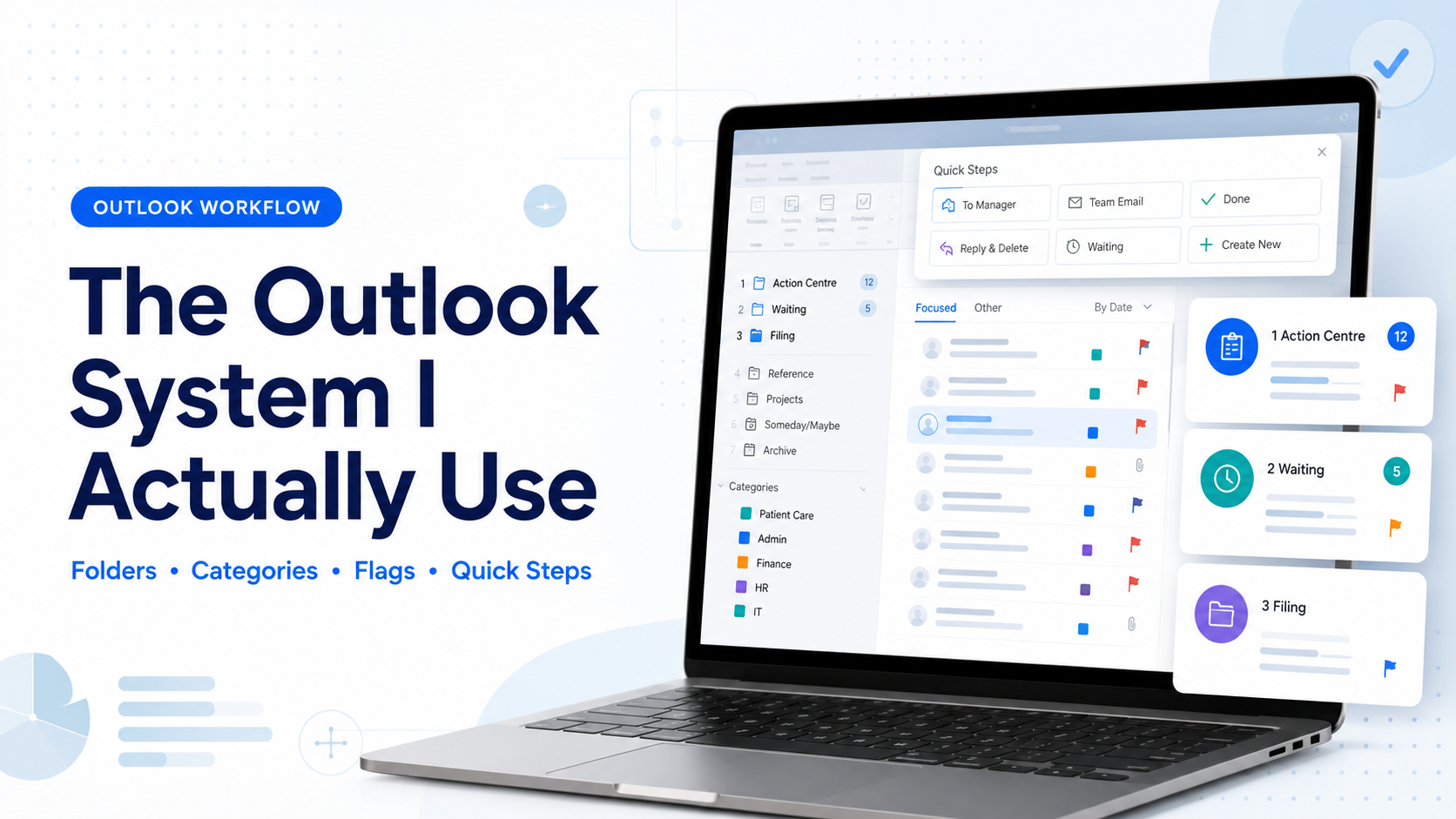
The system does not need to be complicated or over-engineered. A practical Outlook setup can be built using Quick Steps, rules, processed folders and delayed send so that emails are moved into the right next action rather than sitting endlessly in the inbox.
The examples below show how this can look in practice. The exact folder names and rules will vary between roles, but the principle is the same: separate noise, reduce repeated actions and make it clear what needs attention next.
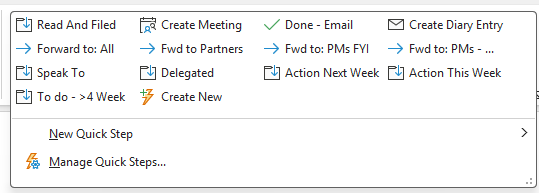
Quick Steps for repeat actions
Quick Steps reduce repeated manual work by turning common actions into one-click workflows. Instead of forwarding, filing and moving emails manually every time, the same type of email can be handled consistently.
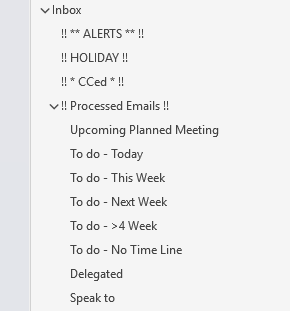
Folders based on next action
Processed folders work best when they describe what needs to happen next. The inbox is where work arrives; the folders are where work is managed.
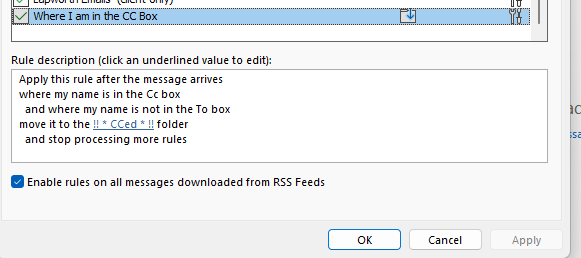
Rules to separate copied-in emails
Being copied into an email does not always mean it needs the same level of attention as an email sent directly to you. Rules can help separate awareness emails from decision emails.
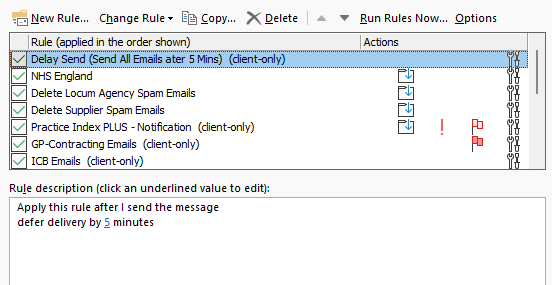
Delayed send as a safety pause
A short delay creates a useful buffer to catch tone, missing attachments, incorrect recipients and those dangerous rapid-fire replies that feel productive until they create three more emails.
Out of Office: Protecting Leave Properly
Annual leave should mean actual leave.
One approach is to set an out of office message that makes clear emails received during leave will not be routinely reviewed and may be deleted. If the matter is still important after the return date, the sender should resend it.
This may sound direct, but it solves a common problem: returning from leave to hundreds of emails, many of which have already been resolved, superseded or become irrelevant.
This approach works best when combined with clear escalation routes. The out of office should explain who to contact for urgent matters, operational issues, safeguarding concerns, HR issues or anything that cannot wait.
It can also be supported by an allow list. Certain senders can be permitted through to a dedicated holiday folder, allowing genuinely important or agreed communications to be separated from the general email backlog.
For example, emails from specific senior colleagues, key operational contacts or agreed escalation routes may bypass the usual leave process and land in a dedicated holiday folder. This means leave is protected without creating unnecessary risk.
Example out of office wording
Thank you for your email. I am currently on annual leave and will not be routinely reviewing emails during this period.
Emails received during my leave may be deleted on my return. If your email is still relevant or requires action after I return, please resend it.
If your matter is urgent and cannot wait, please contact [insert appropriate contact or team].
Thank you.
The wording will not suit every organisation or every role, but the principle is important: leave should not simply pause the inbox and create a punishment pile for your return.
The Last 30 Minutes of the Day
Email management works best when it becomes part of the working rhythm rather than something squeezed in when everything is already on fire.
Setting aside the final 30 minutes of each day to review and clean up the inbox can make a significant difference.
This time can be used to:
- clear the inbox into the right folders
- check the “To do - Today” folder is empty or consciously carried forward
- review delegated items
- turn emails into diary actions
- move discussion items into meeting folders
- delete emails that no longer matter
- prepare priorities for the next day
This is not dead time. It is management time.
Without this protected time, the inbox slowly starts to rebuild itself into a chaotic pile of “I’ll sort that later”. Later rarely arrives politely. It usually turns up during a meeting, while someone is waiting for an answer, or when the email has become urgent through neglect.
A Practical Daily Workflow
A simple workflow might look like this:
Scan for urgent issues, safety concerns, operational risks and items that affect today’s work.
Use Quick Steps and rules to process emails quickly without letting the inbox become the main task list.
Spend 30 minutes clearing, filing, delegating, deferring and setting up tomorrow’s priorities.
The goal is not to check email constantly. The goal is to stop email constantly controlling the day.
Email Management Is a Leadership System
Good email management is not just personal productivity. In general practice, it supports governance, communication and risk control.
A poor email system can lead to missed actions, delayed responses, duplicated work, unclear ownership and unnecessary stress. A good email system creates visibility, pace and control.
This is particularly important for managers working across multiple practices, teams or workstreams. When information is arriving from several directions, relying on memory is not a safe operating model.
The same principles apply across practice operations.
Define the workflow, reduce avoidable noise, create clear ownership, build in review points, and make the right action easier than the wrong one.
That is why email management should be seen as part of the wider management infrastructure of a practice. It is not about being neat. It is about being able to see what needs doing, what has been delegated, what is waiting, what can be ignored and what genuinely needs attention.
A Simple Setup Checklist
For anyone wanting to build a more controlled inbox, start with the basics:
Final Thought
The inbox is one of the most common sources of hidden workload in general practice.
It interrupts, distracts, escalates, duplicates and quietly stores risk. But with a clear system, it can become manageable.
Inbox zero is not about doing everything immediately. It is about making sure nothing is left floating without a decision.
Your inbox is not a to-do list. It is an entry point into your management system.