- Benjamin Haresign
- 28 Aug, 2026
- Digital Tools
- 11 min read
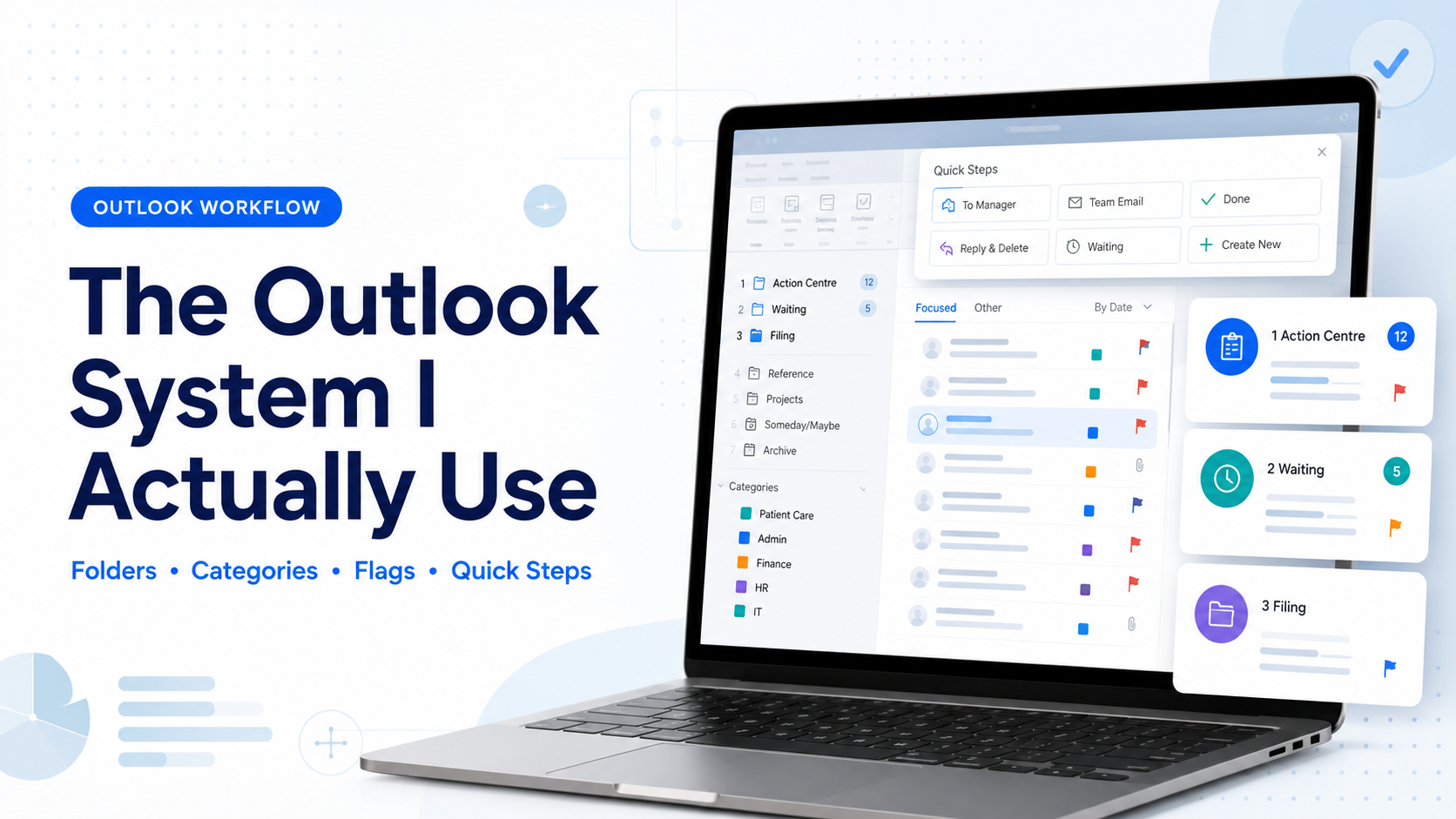
The Outlook System I Actually Use: Folders, Categories, Flags and Quick Steps
The Outlook System I Actually Use: Folders, Categories, Flags and Quick Steps
A practical email-management system for practice managers that separates incoming noise, active work, delegated actions and long-term filing—without turning Outlook into a second full-time job.
From a useful method to a complete working system
In Your Inbox Is Not a To-Do List, I set out the basic argument: inbox zero is not about completing every action immediately. It means every email has been reviewed, given a next state and moved into the right workflow.
That approach worked well. I have now rebuilt and refined my own Outlook setup around it, including the folder order, filing structure, categories, keyboard shortcuts and Quick Steps. The result is clearer, quicker and more scalable than the earlier version.
It is not a theoretical productivity diagram. It is designed around the mixture of work that arrives in a practice-management inbox: workforce, payroll, complaints, governance, contracts, estates, IT, patient access, QOF, enhanced services, PCN work, ICB communications, meeting papers and the many items that begin with “just a quick question”.
What has changed?
The earlier setup was mainly organised around next-action folders. The revised version keeps that strength, but adds a numbered hierarchy, a proper filing layer, workstream categories, deadline flags and more deliberate Quick Steps. Each part now has one clear job.
The five parts of the system
Inbox
The arrival point. It is for triage, not permanent storage and not the task list.
Folders
The email's workflow state or broad filing home: action, waiting, delegated or reference.
Flags
The deadline. Today, this week, next week or no fixed date.
Categories
The subject or workstream, allowing one email to be found across folders without duplicating it.
Quick Steps
The automation layer that moves, flags, forwards, categorises or converts an email consistently.
Number the folders so the important ones stay visible
Outlook sorts folders alphabetically. Numbering the top-level folders keeps the operational workflow in a predictable order and leaves room to add something later. Using increments of ten avoids having to rebuild the whole structure whenever a new requirement appears.
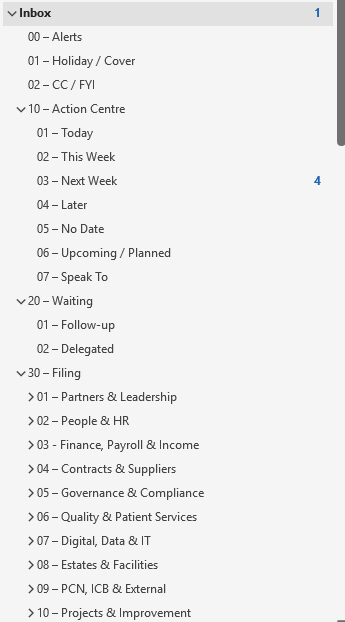
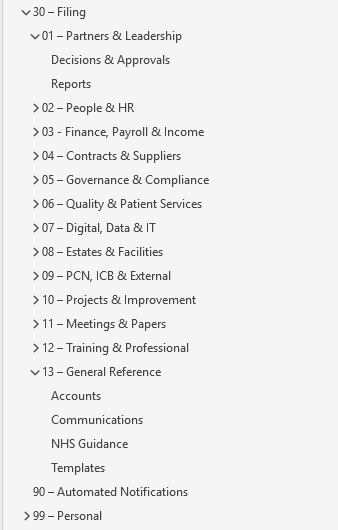
Inbox
├─ 00 – Alerts
├─ 01 – Holiday / Cover
├─ 02 – CC / FYI
├─ 10 – Action Centre
├─ 20 – Waiting
├─ 30 – Filing
├─ 90 – Automated Notifications
└─ 99 – Personal
The first three folders can be supported by Outlook rules. Known system alerts can move into Alerts, agreed leave communications can move into Holiday / Cover, and messages where you are copied for awareness can move into CC / FYI. The rules need local judgement: a copied email can still be important, and an alert folder that is never reviewed is simply a quieter form of risk.
The Action Centre: organise work by when it needs attention
The Action Centre holds emails that still require something from me. It is deliberately based on time and next action rather than topic. A payroll email and an estates email can both need action today; separating them by subject does not answer the operational question of what needs doing first.
| Folder | Use |
|---|---|
| 01 – Today | Work that genuinely needs attention today. |
| 02 – This Week | Current-week commitments that are not today's priority. |
| 03 – Next Week | Work deliberately deferred into the following week. |
| 04 – Later | Longer-term actions that remain relevant but are not yet scheduled. |
| 05 – No Date | Ideas or useful actions without a sensible deadline yet. |
| 06 – Upcoming / Planned | Larger or multi-stage work that needs planning rather than a quick response. |
| 07 – Speak To | Items best resolved through a conversation instead of another email chain. |
Separate waiting from delegated
Waiting and delegated work are related, but not identical. A waiting item may depend on an ICB response, a supplier quote or information from another organisation. A delegated item has been actively passed to a colleague and still requires oversight.
01 – Follow-up
I am waiting for a reply, decision, document or external action.
02 – Delegated
Someone else owns the action, but I still need visibility and a follow-up point.
Both folders should be reviewed routinely. Delegation transfers the action; it does not automatically transfer accountability or remove the need to check completion.
Broad filing folders, not a maze
The filing structure is intentionally broader than the category list. Folders provide a stable home; categories provide the more precise label. This avoids creating a separate folder for every service, supplier, staff member, contract and acronym that crosses the inbox.
Decisions, approvals and reports
Recruitment, contractual changes, absence and employee relations
Enhanced services, payroll, invoices, budgets and reconciliations
NHS contracts, procurement, supplier agreements and insurance
CQC, complaints, incidents, IG, policies, risk and audit
QOF, access, patient feedback and clinical quality
Support, systems, reporting and digital projects
Maintenance, health and safety, fire, security and utilities
PCN, ICB, NHS England and system partners
Active and completed improvement work
Partner, management, staff and external meetings
Personal CPD, staff training, IGPM and webinars
Guidance, templates and communications
I use subfolders where the volume justifies them, but stop at two levels beneath Filing. A structure that needs repeated expanding, scrolling and guessing is no longer helping. Search and categories are usually better than a fourth level of folders.
Categories provide the second dimension
An email can live in only one folder, but it can carry several categories. That makes categories useful for workstreams that cut across the folder hierarchy. A completed enhanced-services query may be filed under Finance, while still being immediately discoverable through the Enhanced Services / Income category.
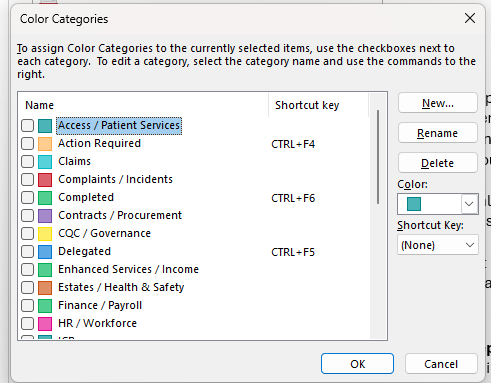
Core workstream categories
- Access / Patient Services
- Claims
- Complaints / Incidents
- Contracts / Procurement
- CQC / Governance
- Enhanced Services / Income
- Estates / Health & Safety
- Finance / Payroll
- HR / Workforce
- ICB
- IGPM
- Information Governance
- IT / Digital
- Meetings
- Partners / Leadership
- PCN
- Projects / Improvement
- QOF / Clinical Quality
- Suppliers
- Training / CPD
Optional status categories
- Urgent / Today
- Action Required
- Waiting / Follow-up
- Delegated
- Completed
- Reference / No Action
Folders and flags remain the authoritative workflow. Status categories are useful as additional labels, but they should not be allowed to become stale.
I removed Outlook's unnamed default colour categories. “Blue Category” is not a management system; it is a colour having an identity crisis.
In classic Outlook for Windows, frequently used categories can also have keyboard shortcuts. I use Ctrl + F2 through Ctrl + F6 for urgent, waiting, action, delegated and completed states. The shortcuts are optional; the important part is that category names have an agreed meaning.
Quick Steps turn the model into daily behaviour
A folder structure is only useful if emails reach the correct folder consistently. Quick Steps remove the repeated sequence of moving, flagging, marking and forwarding. The numbered shortcuts below mirror the Action Centre and Waiting folders.
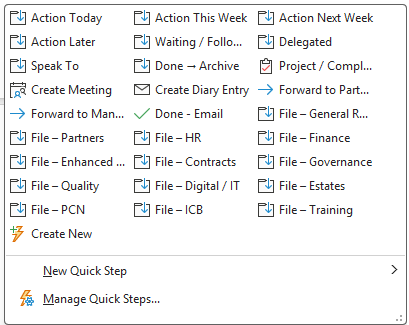
| Shortcut | Quick Step | Actions |
|---|---|---|
| Ctrl + Shift + 1 | Action Today | Move to Today; flag Today; mark unread. |
| Ctrl + Shift + 2 | Action This Week | Move to This Week; flag This Week; mark unread. |
| Ctrl + Shift + 3 | Action Next Week | Move to Next Week; flag Next Week; mark unread. |
| Ctrl + Shift + 4 | Action Later | Move to Later; flag with no date; mark unread. |
| Ctrl + Shift + 5 | Waiting / Follow-up | Move to Follow-up; flag Next Week; mark unread. |
| Ctrl + Shift + 6 | Delegated | Open a blank-recipient forward; move original to Delegated; flag Next Week; mark unread. |
| Ctrl + Shift + 7 | Speak To | Open a blank-recipient forward; move original to Speak To; flag with no date; mark unread. |
| Ctrl + Shift + 8 | Done → Archive | Mark read; clear flag; apply Completed; move to Archive. |
| Ctrl + Shift + 9 | Project / Complex Task | Create task with the email attached; move to Upcoming / Planned; apply Projects / Improvement; mark read. |
Outlook carries out the move and flag actions when the Quick Step is selected. For Delegated and Speak To, closing the resulting forward without sending it means the original may need to be moved back manually.
Do not create a separate task for every actionable email
Flagged emails from the primary Microsoft 365 mailbox already appear in Microsoft To Do. The task retains a route back to the original email, so creating another Outlook task for Today, This Week and Next Week usually produces duplication rather than control.
I reserve Create a task with attachment for larger work: something multi-stage, something that needs its own notes or reminder, or something that needs to be developed as a project rather than simply answered. In that case, the email moves to Upcoming / Planned and is not also flagged.
Add filing Quick Steps only where they save real time
Not every filing folder needs a button. I would create filing Quick Steps for the highest-volume areas—typically HR, Finance, Governance, Enhanced Services, Digital / IT, Partners and General Reference. Each step can mark the message read, clear any flag, apply the relevant workstream category and move it to the broad filing folder.
Example: File – Enhanced Services
- Mark the message as read.
- Clear any follow-up flag.
- Apply Enhanced Services / Income.
- Move it to Finance, Payroll & Income → Enhanced Services.
What works particularly well
The strongest feature of the revised system is that it answers several different questions without forcing one folder name to do everything.
| Question | Where the answer lives |
|---|---|
| Does this still need action? | Action Centre, Waiting or Archive |
| When should I look at it? | Follow-up flag |
| What area of work does it concern? | Workstream category |
| Where should it be retained? | Broad filing folder |
| Is someone else doing it? | Delegated folder and follow-up flag |
| Is it larger than the original email? | Project / Complex Task |
That separation is why the method feels controlled rather than over-engineered. The inbox becomes a decision queue. The Action Centre becomes the working view. Waiting creates oversight. Filing creates retrieval. Quick Steps keep the behaviour consistent when the day becomes busy—which, in general practice, is traditionally somewhere around 8:31am.
You will need local adjustments
The model is transferable; the exact names are not mandatory. A PCN manager, finance lead, operations manager or practice manager will each receive a different mix of work. Some organisations will need separate safeguarding, private-work, research, prescribing or locality folders. Others will barely use some of the headings above.
The test is not whether your Outlook looks identical to mine. The test is whether every folder and category answers a useful question and whether the system still works when the inbox is under pressure.
- Rename folders to match the language used locally.
- Create subfolders only when email volume justifies them.
- Treat rules cautiously so important copied or automated messages are not hidden.
- Review Waiting and Delegated folders on a fixed rhythm.
- Remove any category, folder or Quick Step that is not being used.
A practical implementation order
- Create and number the top-level folders.
- Build the Action Centre and Waiting subfolders.
- Add broad filing folders before creating detailed subfolders.
- Rename or delete Outlook's meaningless default categories.
- Create the core workstream categories.
- Configure the nine workflow Quick Steps and test each on a disposable email.
- Add filing Quick Steps only for repeated high-volume actions.
- Create rules for alerts, automated notifications, leave and copied-in messages.
- Protect time each day to review Today, Waiting and Delegated work.
The daily rhythm still matters
No folder structure compensates for never reviewing it. I still recommend a short operational scan at the beginning of the day and protected inbox-reset time at the end. Today should be emptied or consciously carried forward. Waiting and Delegated should be reviewed. Completed items should be archived or filed. Tomorrow should begin with a visible set of priorities rather than yesterday's sediment.
The system reduces the cognitive effort of deciding where an email belongs, but management judgement remains the important part. Outlook can move the message. It cannot decide whether the complaint is escalating, whether a staffing issue needs immediate intervention or whether the “quick question” has quietly become a project.
Final thought
The previous Outlook method proved the central idea: the inbox should be an entry point, not the place where work lives. This revised structure completes the model.
Folders show state. Flags show time. Categories show subject. Quick Steps make the movement repeatable. Tasks are reserved for work that has genuinely grown beyond the email that started it.
The result is not merely a tidy inbox. It is a visible, reviewable and dependable management workflow.